
Everything you need to build your first digital lookbook and manage your membership.
Getting started (3 steps)
- Install and activate Solio Lookbook Magazine on your WordPress site.
- Go to Lookbooks > Add New Lookbook. The Visual Editor opens automatically – add pages, drop in fabric photos, and style each page.
- Copy the shortcode shown on the lookbook and paste it into any page or post. Publish. Done.
The Visual Editor
- Pages are added with + Add visual page. Each page can hold images, rich text, tables, and product hotspots.
- Shapes library: drag shapes onto the page, set size, line thickness, rotation and transparent fills with numeric inputs.
- Composition pages: pair a fabric photo with an effect photo and an auto-built composition table.
- Drag & drop: tables and text boxes can be positioned anywhere on a page by dragging with the mouse.
Display shortcodes
-
Click ESC to exit full screenDisclaimer: The colors displayed in the digital mockup may vary due to differences in computer and mobile screens. Images are for illustrative purposes only. The exact fabric color should be verified using the physical fabric swatch.⚡ Made with Solio Lookbook
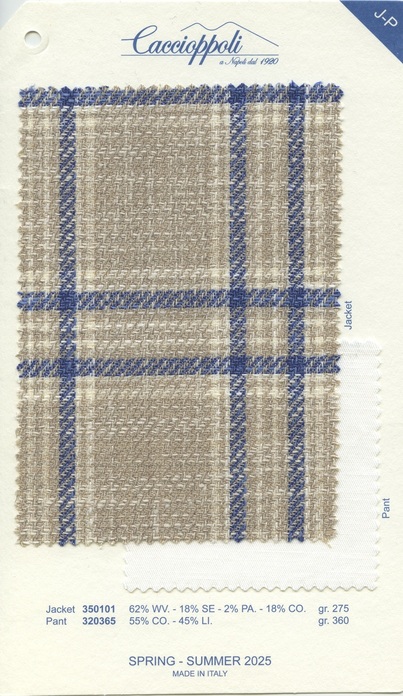
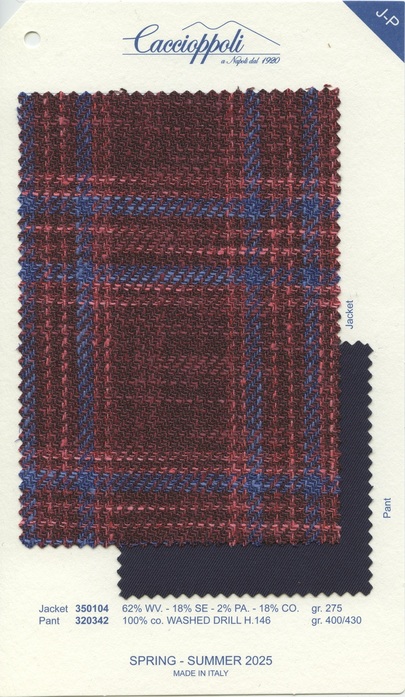
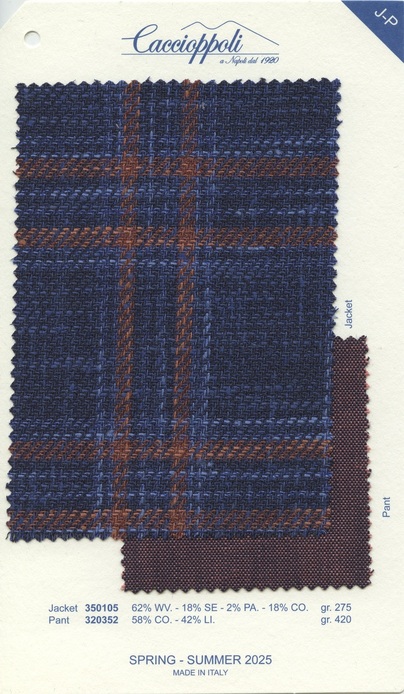
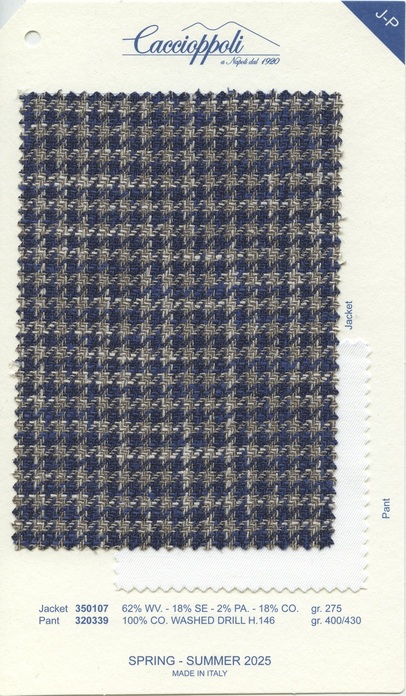
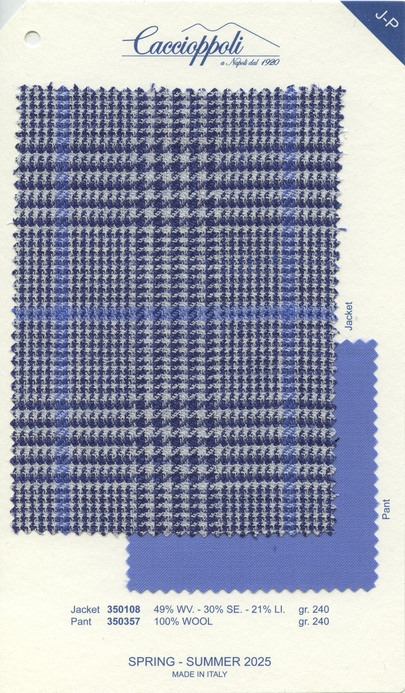
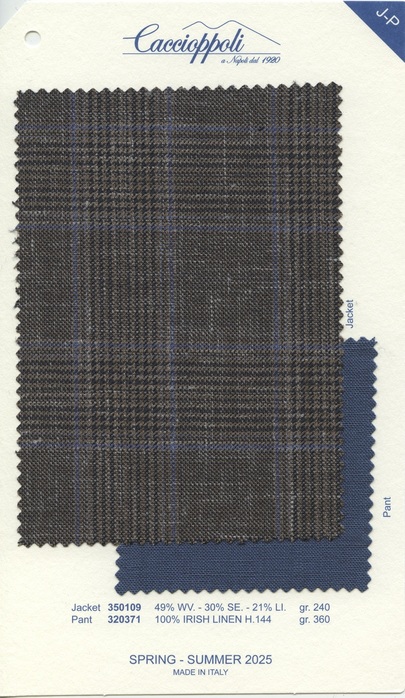
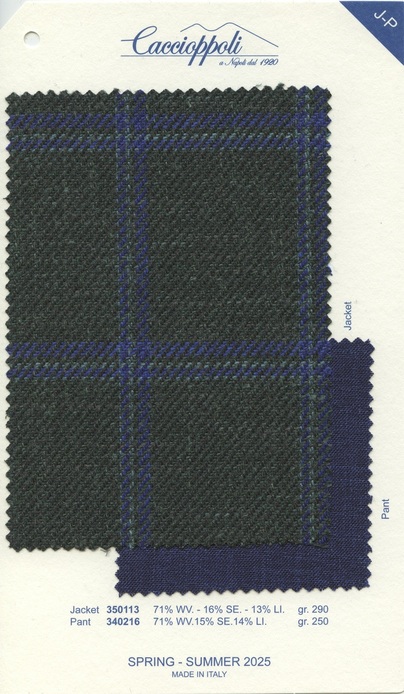
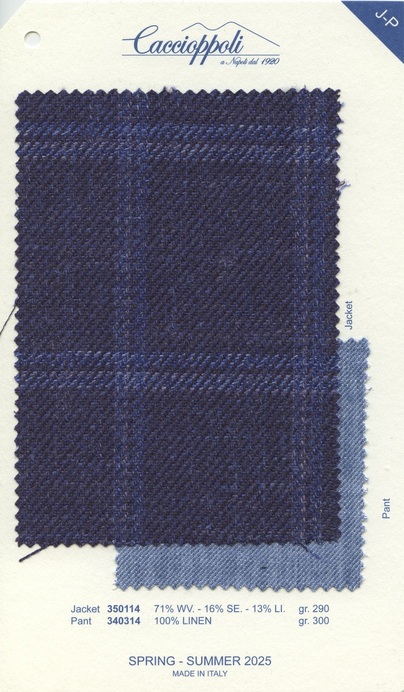 – embed one flipbook. Attributes: id, width, height, autoflip, autoflip_loop and more.100%
- – cover wall of all lookbooks.
- [solio_lookbook_series] – bookshelf of one series.
Member area
- Customers register at /register/, then activate their license key at /membership-activation/.
- Wrap members-only content in on any page.
This area is reserved for Solio Customer members.
- Expired or cancelled licenses are downgraded automatically by the daily sync.
In-plugin guides
Once the plugin is installed, the Lookbook Guide and Shortcode Guide pages inside your WordPress admin cover every attribute and option in detail.